Troubleshooting
Solutions to common ReportBurster issues and startup problems.
ReportBurster Troubleshooting
Cannot Get ReportBurster Setup and Working
If you cannot get ReportBurster configured and working as described in the ReportBurster in 5 Minutes guide, check the readme-Prerequisites.txt file.
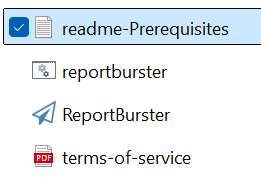
This file contains the same "Configure ReportBurster pre-system requisities" steps found in the user interface, but formatted for direct execution in Windows DOS/PowerShell command line. In rare situations, setting up using the user interface fails (this might depend on how the user's computer is configured or some permission-related issues).
In any case, the most straightforward approach is to manually install the prerequisites, which is not difficult and is explained in readme-Prerequisites.txt.
Application Startup Issues
Patience During Launch
When launching ReportBurster.exe, wait patiently for 1-2 minutes (depending on your computer's performance). Do not click multiple times on ReportBurster.exe as this will create additional processes and worsen the situation.
Once started, ReportBurster's user interface and processing operations are responsive and fast. We are working to improve startup time in future versions.
ReportBurster.exe Fails to Launch Despite Waiting (Hanging Processes)
If ReportBurster.exe does not launch after waiting patiently:
- Open Windows Task Manager
- Search for any hanging ReportBurster.exe processes and end them
- Also search for and end any hanging 'java' or 'jdk' processes
- Only kill Java processes if you're certain no other business software depends on Java
- If ReportBurster is your only Java-based application, it is safe to terminate these processes
- After clearing hanging processes, run ReportBurster.exe as administrator
- Wait patiently for the application to load (typically faster, but may take up to 3 minutes on slower computers)
Document Portal FAQ
The Portal won't start. What should I check?
- Docker Engine Required The Portal runs inside Docker containers. Make sure Docker is installed and running on your machine.
- Check Docker Installation If the Portal does not start, verify your local Docker installation and that you have permission to run containers.
The first startup takes a long time or the Admin login page is not loading.
- Initial Provisioning The very first time you start the Portal, it will take longer because it needs to download images and provision the environment (install plugins, create database, etc).
- Be Patient If the Admin login page is not coming up, give it several minutes—especially on slower machines or networks.
The Portal still isn't loading. What next?
- Check the Logs
Review the logs for errors.
- For Docker:
docker compose logs - For Portal: check the logs in the
logs-wpandlogs-dbfolders.
- For Docker:
- Look for errors or failed steps during provisioning or startup.
My custom content type is not working end-to-end (documents not showing, publishing fails, etc).
Each content type (e.g., payslip, invoice, certificate) must have:
- The content type created in the portal (with all expected fields and correct field types).
- A
single-<type>.phptemplate for single document view. - A
page-my-documents.php(or similar) template for listing documents. - A script to publish documents from ReportBurster to the portal via the REST API.
Troubleshooting steps
- Check the content type: Is it created in the portal? Does it have all the expected fields with the correct types?
- Check the templates
Are
single-<type>.phpandpage-my-documents.phppresent and adapted for your fields? - Check the publishing script Is the script customized for your content type and fields? Does it handle user creation and access as needed?
- Check access and roles Are the correct IFs for user creation, group/role assignment, and access control present in your scripts?
- Use AI to review Use the AI tools to double-check and review your scripts and templates based on your content type structure and business rules.
Still stuck?
- Double-check each step above.
- Search the documentation for your error message or scenario.
- If you're still having trouble, reach out for support with your logs and a description of your setup.
- If still not working, please don't hesitate to Contact us