ReportBurster Configuration Settings
Configure ReportBurster's core settings for report generation, document bursting, and distribution.
Table of Contents
Introduction
ReportBurster's configuration settings allow you to customize how reports are generated, processed, named, stored, and distributed. These settings control everything from output file naming conventions to advanced processing behaviors. While the default settings work well for most situations, customizing these options helps you tailor ReportBurster to your specific reporting requirements.
General Settings
-
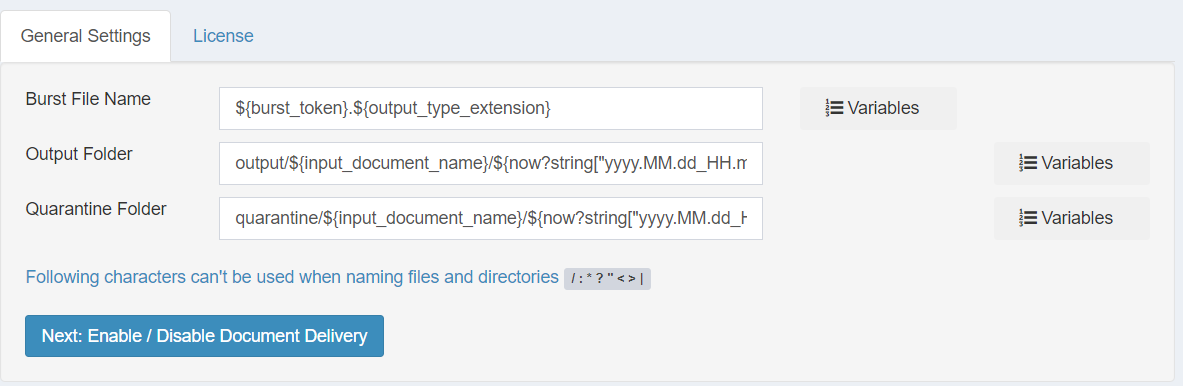
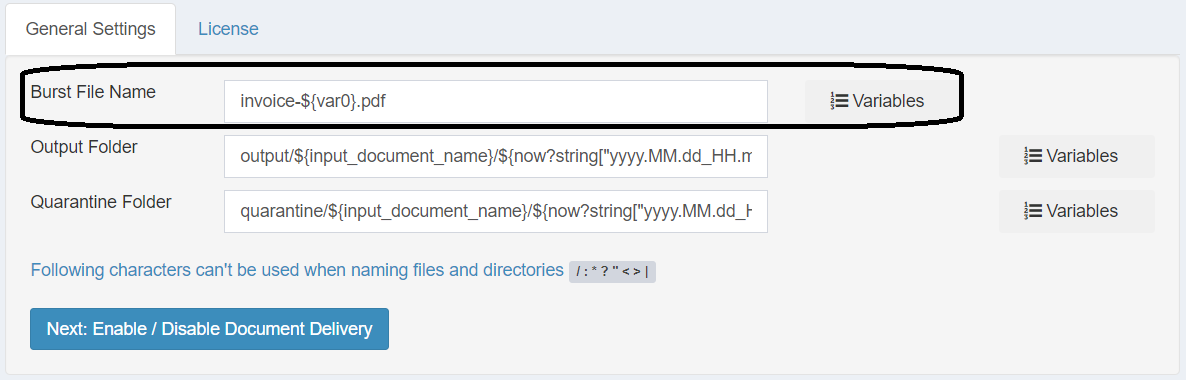
Burst File Name: Sets the naming pattern for generated files
- Default:
${burst_token}.${input_document_extension} - Example: If the burst token is
{[email protected]}, the output file will be named[email protected] - Customize this setting to create more descriptive filenames (e.g.,
Invoice-${burst_token}.${input_document_extension})
- Default:
-
Output Folder: Specifies where to save output files
- Default:
output/${input_document_name}/${now?string["yyyy.MM.dd_HH.mm.ss.SSS"]} - This creates a timestamped subfolder for each processing job
- Default:
-
Quarantine Folder: Sets location for files that fail distribution
- Default:
quarantine/${input_document_name}/${now?string["yyyy.MM.dd_HH.mm.ss.SSS"]} - Failed distributions are stored here for troubleshooting
- Default:
Delivery Options

Control how documents are delivered after processing:
-
Send documents by Email: When enabled, processed documents are automatically sent via email to designated recipients
- Default: Unchecked (disabled)
-
Upload documents: When enabled, documents are uploaded via FTP, SFTP, File Share, FTPs or HTTP/WebDAV
- Default: Unchecked (disabled)
-
Send documents to a Website: When enabled, documents are delivered to web platforms like ReportBurster Web, SharePoint, or WordPress
- Default: Unchecked (disabled)
-
Send SMS messages: When enabled, SMS notifications are sent when documents are processed
- Default: Unchecked (disabled)
-
Delete documents after delivery: When enabled, output files are removed after successful delivery
- Default: Unchecked (files are preserved)
-
Quarantine documents which fail to be delivered: When enabled, files that fail delivery are saved to the quarantine folder
- Default: Checked (enabled)
Note: Variables like
${burst_token},${input_document_extension}, and${now?string["yyyy.MM.dd_HH.mm.ss.SSS"]}are replaced at runtime with actual values. For more information about available variables, see Variables Interpolation/Templating.
Advanced Settings
-
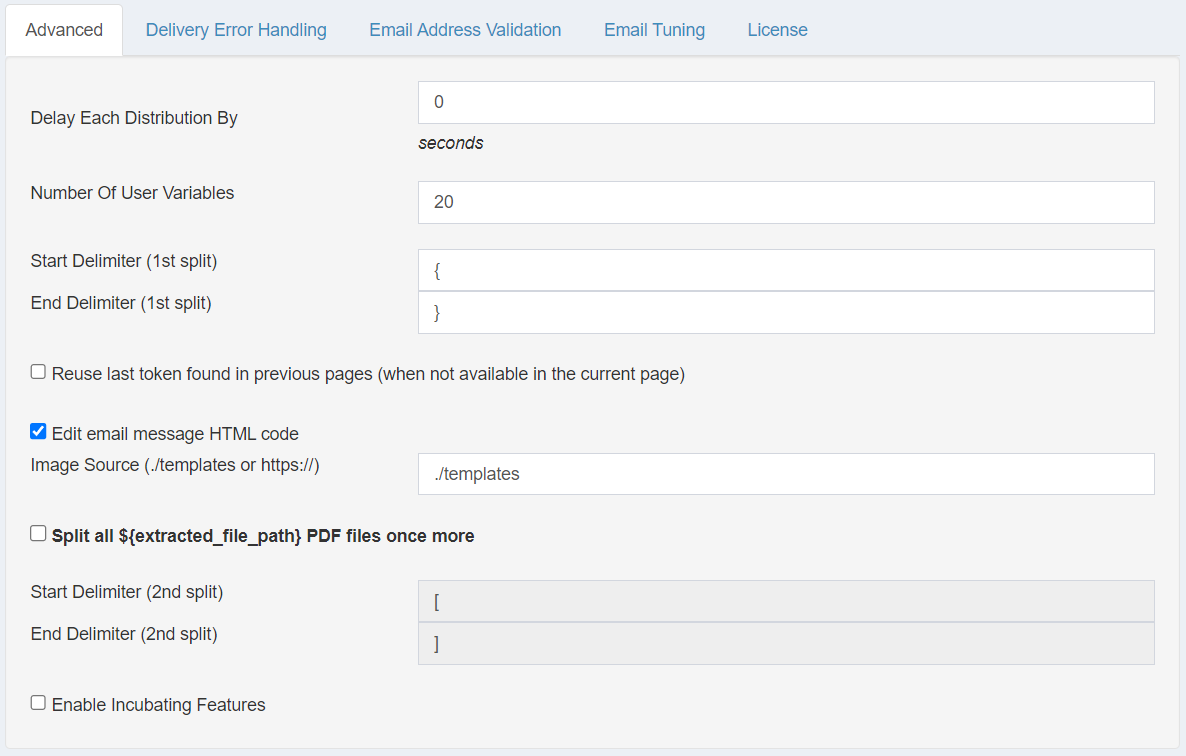
Delay Each Distribution By: Controls wait time between document deliveries in seconds
- Default:
0(no delay) - Useful to prevent overwhelming email servers or triggering spam filters
- Default:
-
Number Of User Variables: Maximum number of user variables ReportBurster will recognize and parse
- Default:
20
- Default:
-
Start Delimiter (1st split): Character used to mark the beginning of a burst token
- Default:
{
- Default:
-
End Delimiter (1st split): Character used to mark the end of a burst token
- Default:
}
- Default:
-
Reuse last token found in previous pages: When enabled, uses the previous token when none is found on the current page
- Default: Unchecked
- Enable when the burst token appears only on the first page of each section
-
Edit email message HTML code: When enabled, allows direct editing of HTML in email messages
- Default: Unchecked
-
Image Source: Specifies location of images for email templates
- Default:
./templates - Can be set to a local path or URL (https://)
- Default:
-
Split all
${extracted_file_path}PDF files once more: Enables secondary splitting of already split files- Default: Unchecked
-
Start Delimiter (2nd split): Character used to mark the beginning of a secondary burst token
- Default:
[
- Default:
-
End Delimiter (2nd split): Character used to mark the end of a secondary burst token
- Default:
]
- Default:
-
Enable Incubating Features: Activates experimental features in development
- Default: Unchecked
- Use with caution as these features may not be fully stable
Note: In most situations, the default advanced settings will work well without modification. Only adjust these settings when you have specific requirements or are troubleshooting issues.
Manage Reports
Each document type you process — invoices, payslips, bills, statements, etc. — should have its own Report entry in ReportBurster. Creating a separate Report for each document type lets you configure distinct settings for how that type is generated, split, and distributed.
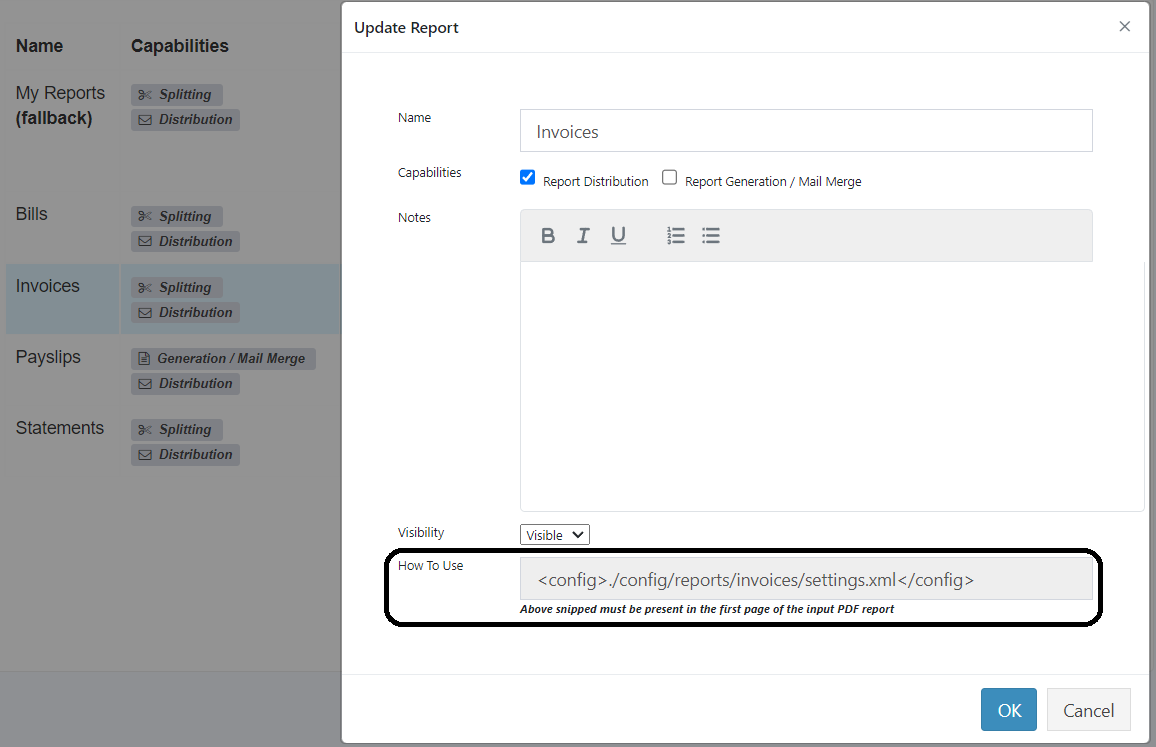
When creating a Report, you give it a name and select which capabilities it needs:
- Report Distribution — for splitting (bursting) and delivering documents via email, FTP, cloud, or portal
- Report Generation / Mail Merge — for generating reports from data sources and templates
Once created, each Report has its own configuration file and its own dedicated screens for the specific distribution or generation settings. The bulk of the configuration — email subjects, output formats, data sources, merge templates, and more — is done in those specialized screens, described in Report Distribution and Report Generation.
By default, ReportBurster processes all reports using the default configuration settings saved in the ./config/burst/settings.xml file. This works well when you only have a single report type to process. When you need to handle multiple document types — each with its own settings — you create a separate Report for each one.
Use case example (Report Distribution):
You need to burst and email several types of financial documents to customers, specifically:
- Invoices
- Bills
- Statements
Each report type should be delivered to customers using an email subject and text specific to the report type being distributed.
You can achieve this requirement by defining:
- Invoices email subject and text in
./config/reports/invoices/settings.xml - Bills email subject and text in
./config/reports/bills/settings.xml - Statements email subject and text in
./config/reports/statements/settings.xml
ReportBurster will process and email each different report type using its own distinct set of configuration settings.
Process PDF Reports Using a Custom Configuration File
When bursting PDF reports, ReportBurster checks the first page of the report for a custom defined configuration file by looking for a pattern like:
<config>path-to-the-custom-settings-file.xml</config>
For example, to process the Invoices report using a custom configuration file, the first page of the input invoices.pdf report should contain:
<config>./config/reports/invoices/settings.xml</config>
Note: You can also use the shorter (but less expressive) pattern: <c>path-to-the-custom-settings.xml</c>, For example: <c>./config/reports/invoices/settings.xml</c>
Process Excel Reports Using a Custom Configuration File
When bursting Excel reports, ReportBurster checks for a custom configuration file defined in the configFile column from the burst metadata sheet. If no custom configuration file is found, ReportBurster will burst the report using the default ./config/burst/settings.xml configuration file.
Here's how Excel reports should be configured to implement the example requirement (invoices, bills, and statements):
In the burst sheet of invoices.xls, define the custom configFile like this:

or ./config/reports/bills/settings.xml for bills reports and ./config/reports/statements/settings.xml for statements reports.
Create, Update and Delete Reports
In ReportBurster's main top menu, select Configuration -> Reports to access the screen shown above.
Each configuration template is saved in a different configuration file. For example, Invoices configuration template will be saved to a ./config/reports/invoices/settings.xml file, while Statements configuration template might be saved in a ./config/reports/statements/settings.xml file.
Once the new reports are created, they become available throughout the ReportBurster user interface.
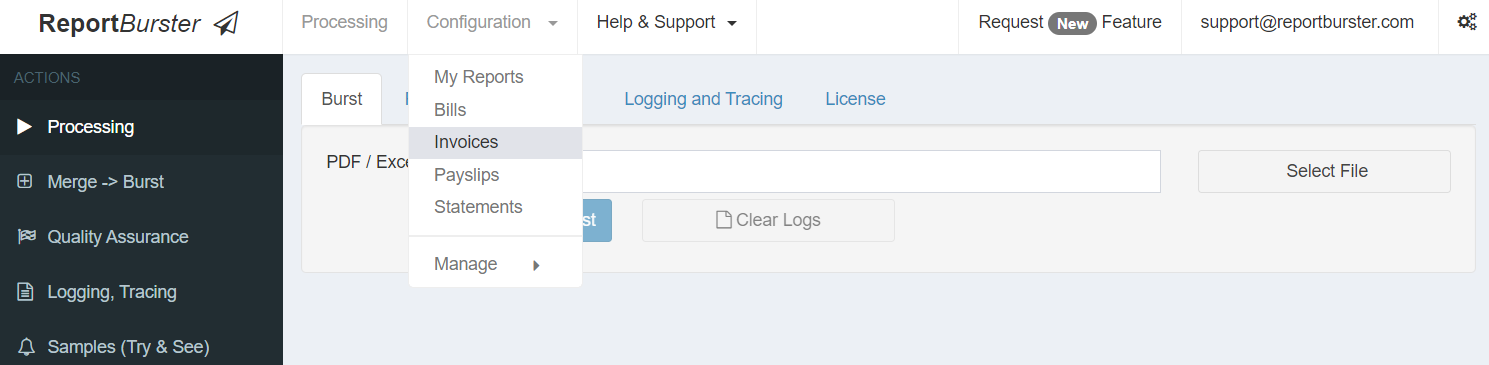
For each different configuration template (i.e. report type) you can modify the specific settings that need to be
different for that report type such as the Burst File Name, Output Folder location
or the Email Subject and the Email Message.
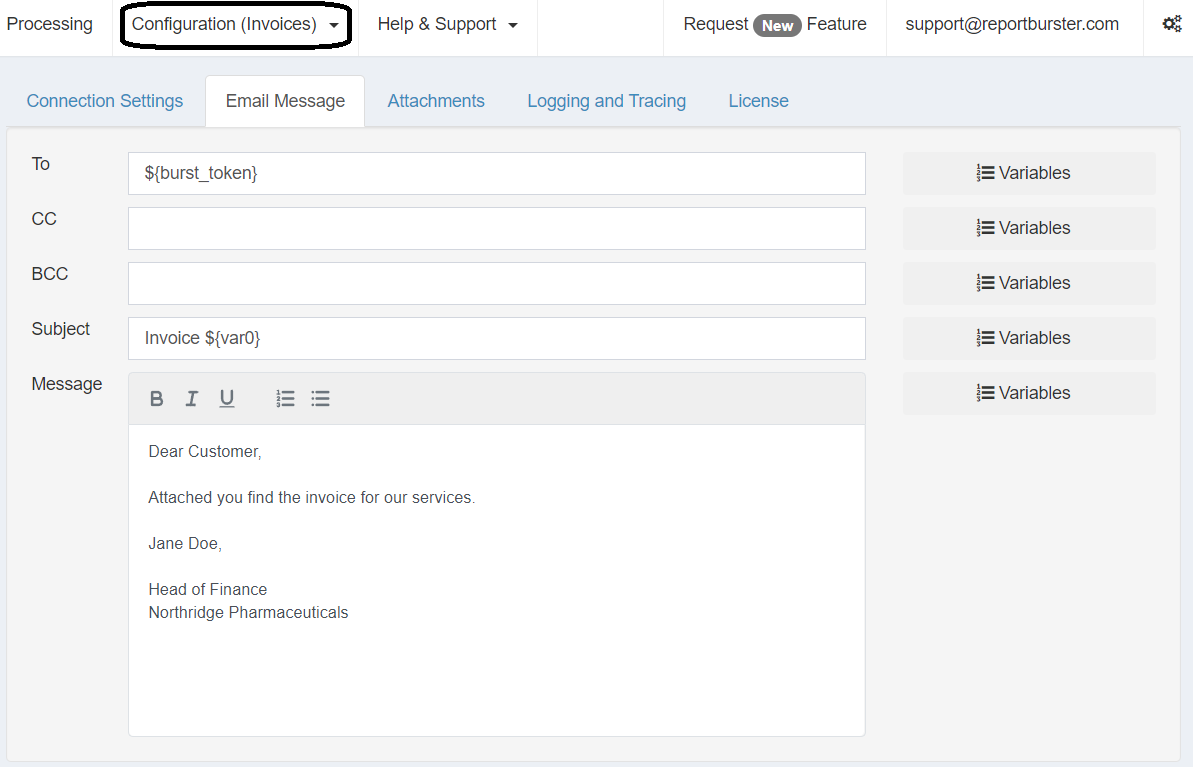
Create a New Report From an Existing One
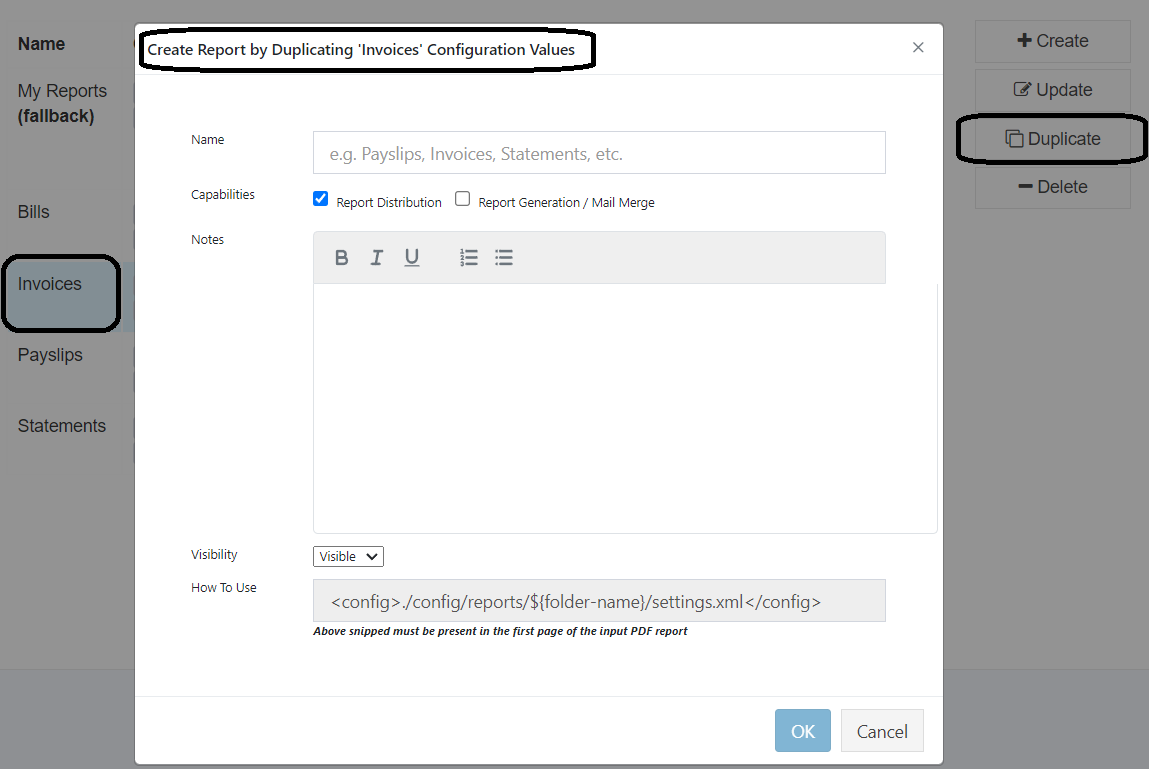
To create a new report that reuses the configuration of an existing one, select the existing report from the list and click the Duplicate button.
This copies all settings into a new report, allowing you to modify only what needs to be different
(such as the Name, Email Subject, or output Burst File Name) while preserving common settings like email
server configurations.