ReportBurster Email Report Distribution
Configure email delivery for burst and generated reports with ReportBurster's intuitive setup.
ReportBurster can automatically email burst and generated reports to recipients. Configure your email settings once and use them across all your report types.
Enable Email Distribution
For configuring email, from the Configuration(My Reports) top menu, select the
Enable / Disable Delivery left menu item.

Make sure to check the Send documents by Email option.
Next, click the new Email Configuration button which appears.
Configure Email Server (SMTP login)
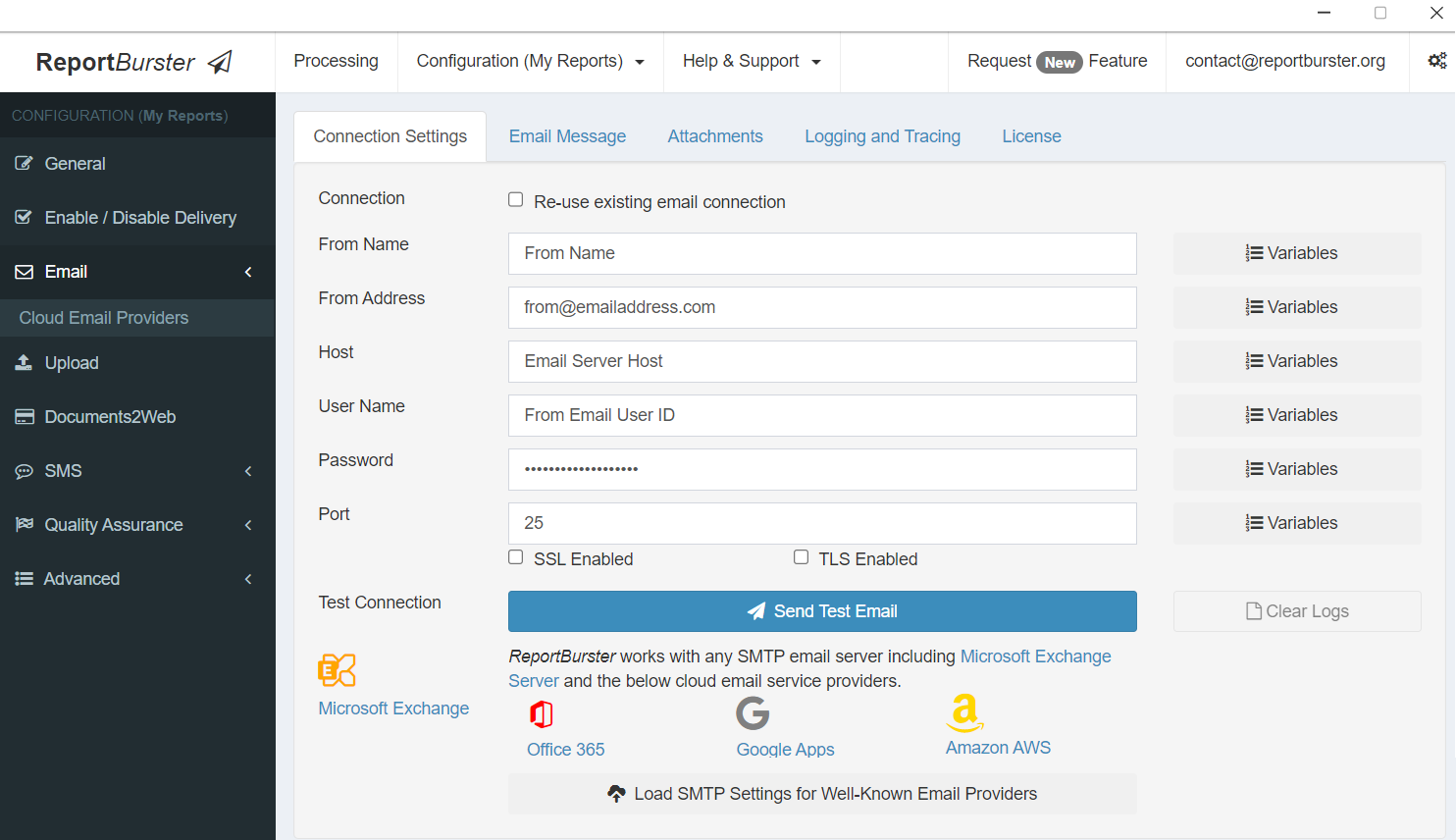
The email configuration is simple. Key settings include the host, username, password, and port. For SSL/TLS-enabled servers (like Gmail), select the appropriate checkboxes.
For well-known providers (e.g., Microsoft Outlook/Office 365), use the Load SMTP Settings for Well-Known Email Providers dropdown
to automatically fill the Host, Port, and SSL/TLS settings. You'll still need to provide the User Name, Password, From Name, and
From Address.
Use Send Test Email to verify your settings.
Email Message
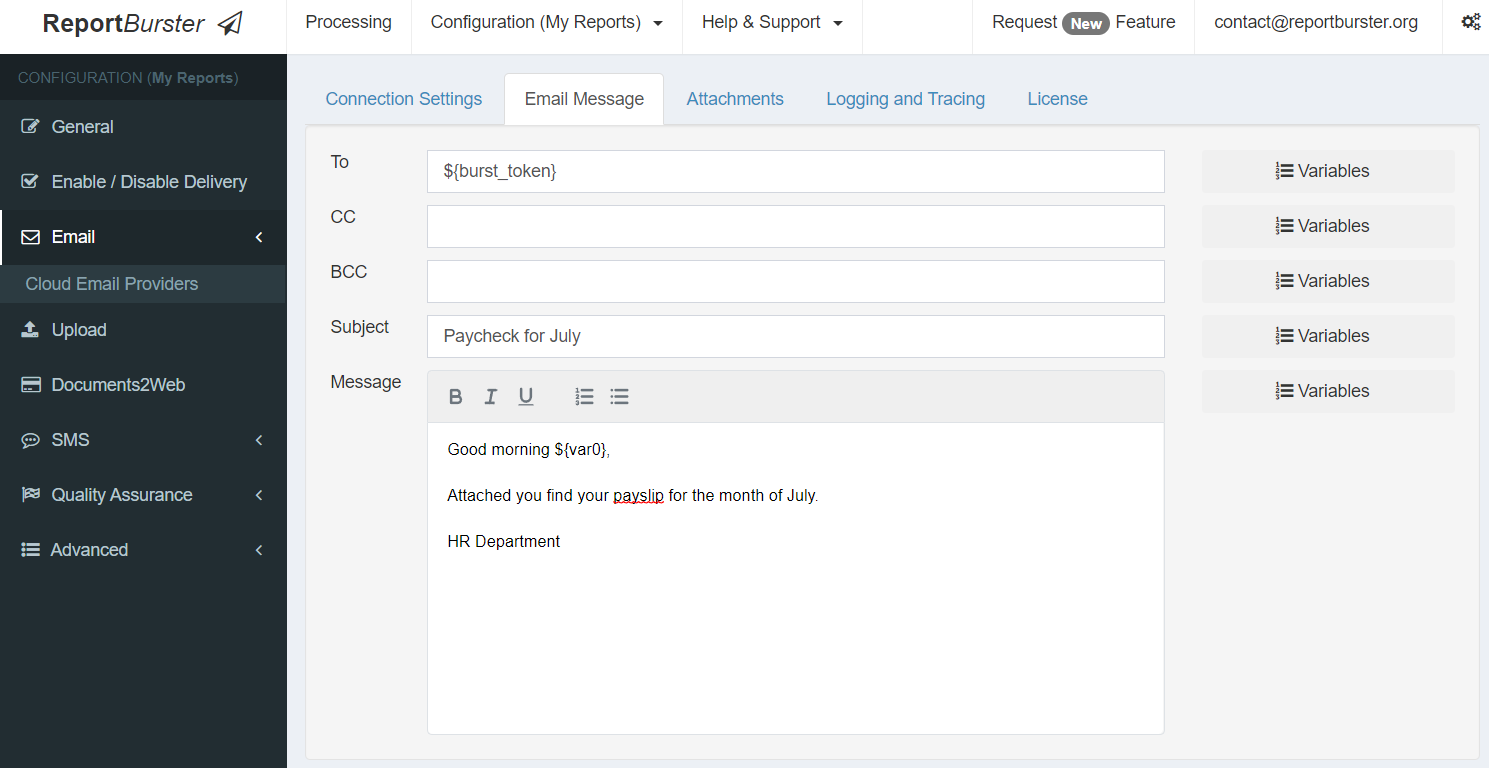
User variables (e.g. ${var0}) can be used to personalize email subject and body. For example, ${var0} can be replaced with the recipient's name.